ScrollShot Pro
Full Page Screenshot & Annotation
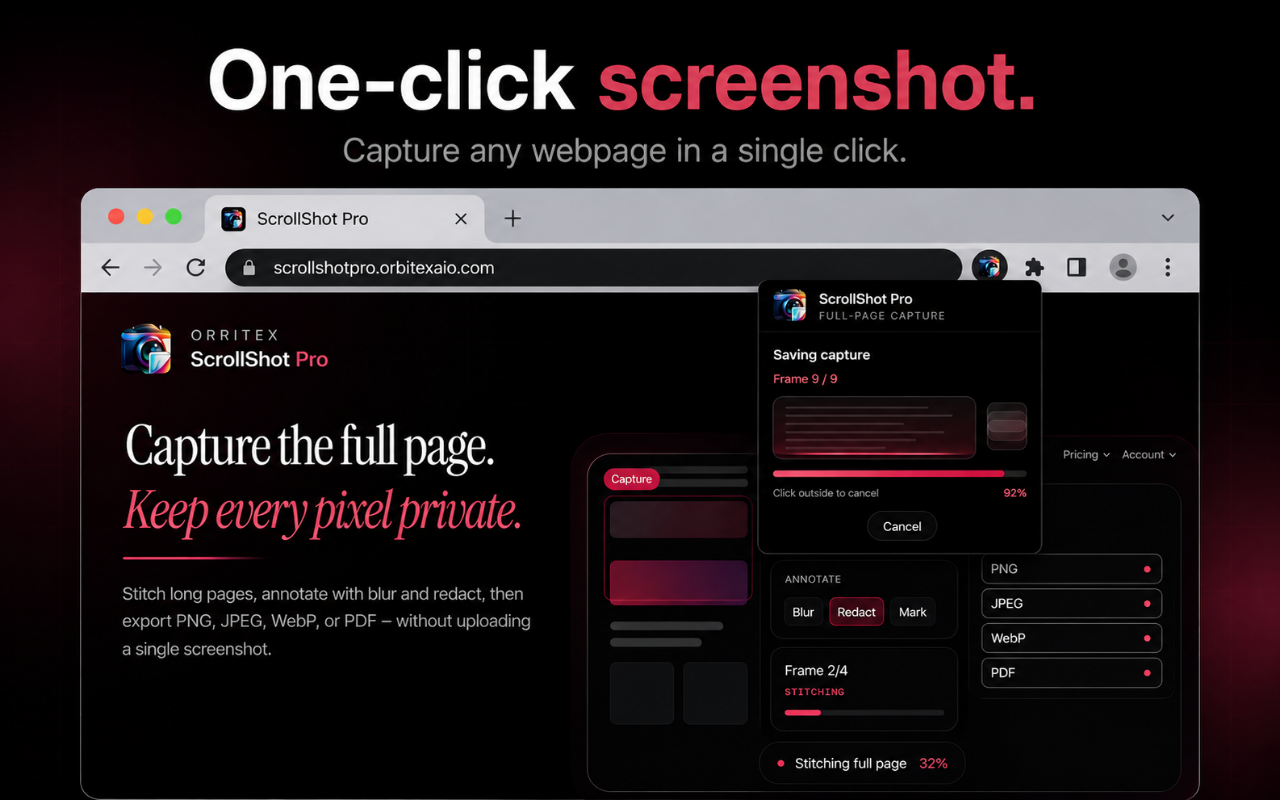
Capture full pages, visible areas, or custom regions in one click. Annotate with an Apple-glass editor - add arrows, text, blurs, and redactions. Export as PNG, JPEG, WebP, or PDF. Everything stays local by default.
What is ScrollShot Pro?
ScrollShot Pro is a premium Chrome extension and web workspace from Orbitex AIO that makes capturing, annotating, and sharing webpage screenshots effortless. Whether you need a full-page archive, a quick visible-area snap, or a precise region crop, ScrollShot Pro handles it with a single click.
Unlike basic screenshot tools that just snap the visible screen, ScrollShot Pro injects a capture script that automatically scrolls the page, grabs each viewport slice, and stitches them into one seamless image. Fixed elements like navigation bars are hidden during stitching and restored afterward so your final screenshot is clean and artifact-free.
Every capture opens in the built-in Apple-glass annotation editor powered by Konva canvas. Add text labels, arrows, shapes, blur boxes, or hard redactions without leaving the browser. Export as PNG, JPEG, WebP, or PDF with one click. Everything is stored in local IndexedDB - nothing is uploaded automatically.
See the Interface in Action
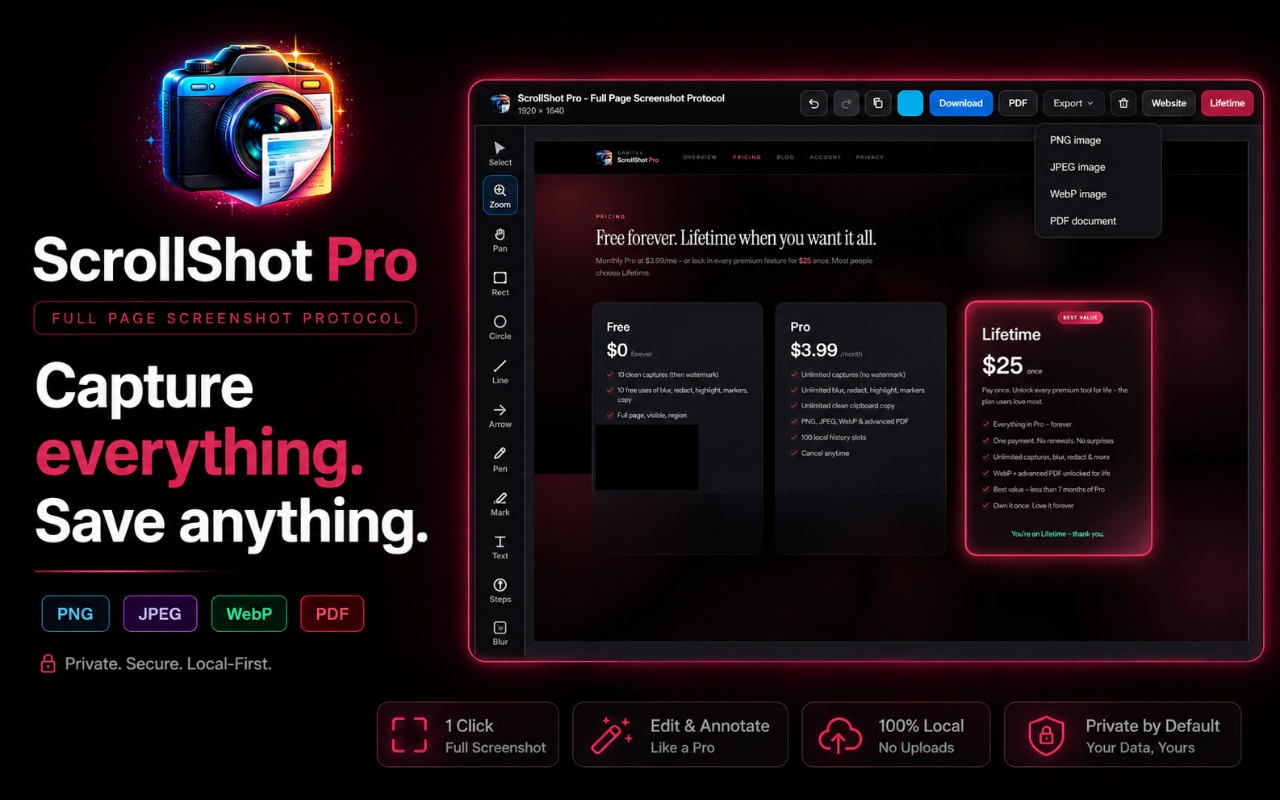
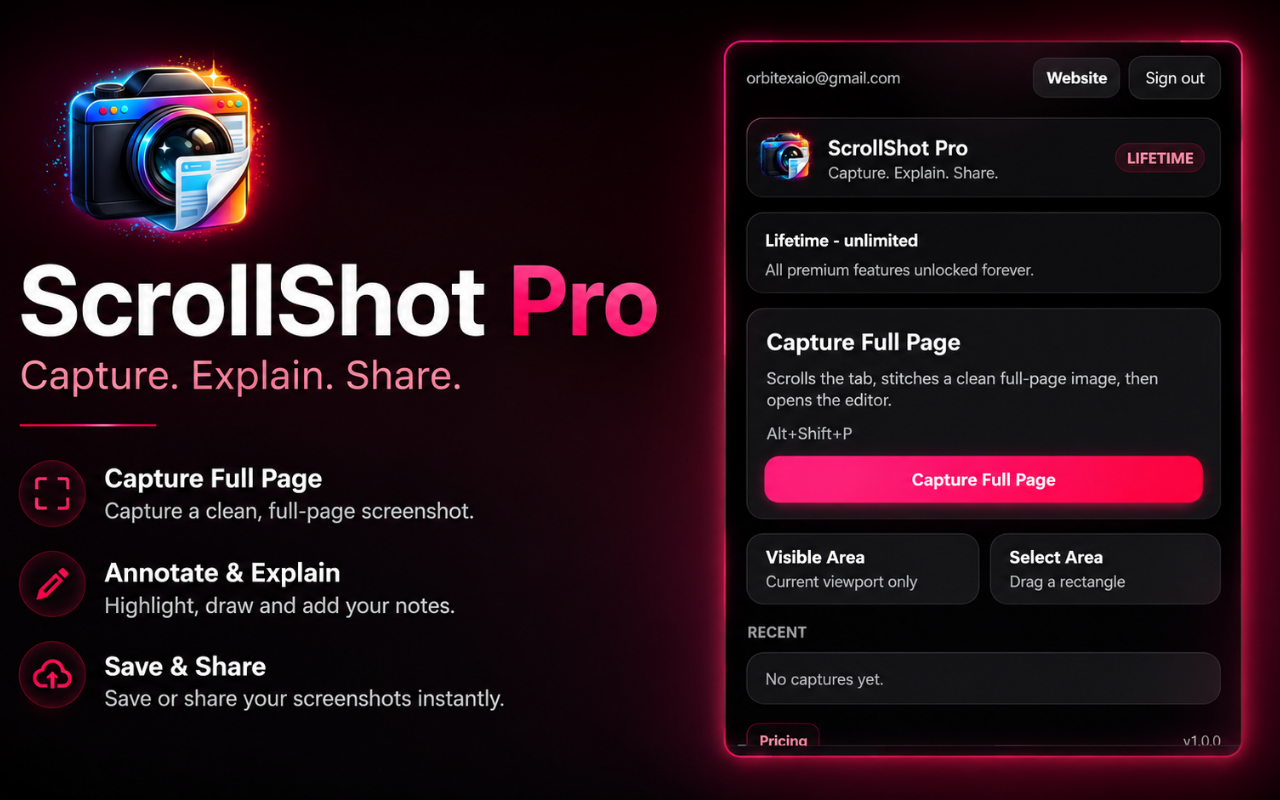
Screenshots of ScrollShot Pro's capture modes, editor, and export workflow.
Powerful Screenshot Features
Everything you need to capture, annotate, and export webpages without a separate desktop app.
Full-Page Capture
Scroll and stitch every pixel of a page into one seamless screenshot - no matter how tall. Works on most modern websites automatically.
Visible-Area Mode
Snap exactly what is on screen right now in one shot. Perfect for quick grabs without waiting for a full-page stitch.
Region Capture
Drag a selection box over any part of the viewport and capture only that area. Precise and instant.
Annotation Editor
Open every capture in a built-in Apple-glass editor. Add text, arrows, shapes, markers, and a highlighter without leaving the browser.
Blur & Redact (Pro)
Protect sensitive data before sharing. Blur or hard-redact any region with one brush stroke. Powered by Konva canvas.
Multi-Format Export
Export as PNG, JPEG, or WebP for any use case. Advanced PDF export available on Pro - great for documentation and reports.
Local-First Storage
Captures and editing history stay in IndexedDB on your device. Nothing is auto-uploaded. Your screenshots are yours.
Keyboard Shortcut
Hit Alt+Shift+S on any page to trigger a full-page capture without touching the popup. Fast workflow for power users.
How to Capture Full-Page Screenshots
Get your first clean full-page screenshot in under 30 seconds.
Install ScrollShot Pro
Add ScrollShot Pro to Chrome, Edge, or Brave from the Chrome Web Store. Pin it to your toolbar for one-click access.
Choose Your Capture Mode
Click the extension icon to open the popup. Pick Full Page, Visible Area, or Region - then hit Capture (or press Alt+Shift+S).
Edit in the Built-in Editor
Your screenshot opens in the annotation editor. Add arrows, text, highlights, blurs, or redactions as needed.
Export or Save Locally
Download as PNG, JPEG, WebP, or PDF. All saves go to your browser downloads folder. History stays in local IndexedDB.
Simple Pricing
Start free. Upgrade to Pro for advanced tools, or grab Lifetime for a one-time payment.
Manual Screenshots vs ScrollShot Pro
See why a dedicated extension beats the old copy-paste screenshot workflow.
| Task / Feature | Manual / OS Screenshot | ScrollShot Pro |
|---|---|---|
| Full-page capture (tall pages) | Multiple manual screenshots + manual stitch | One click - auto scroll and stitch |
| Annotation & markup | Download + open in Photoshop / Paint | Built-in editor - no extra app needed |
| Redact sensitive data | Separate image editing tool required | Blur or redact directly in the editor (Pro) |
| PDF export | Print to PDF (poor quality) | High-quality PDF export (Pro) |
| Privacy (screenshot storage) | Cloud tools upload your images | Local-first IndexedDB - no auto-upload |
| Speed | Slow multi-step workflow | Alt+Shift+S shortcut - instant capture |
The Complete Guide to Full-Page Screenshots
Why Full-Page Screenshots Matter in 2026
From documenting client work, capturing competitor pages, archiving content for legal evidence, or building product design references - full-page screenshots are a daily need for developers, designers, and marketers alike. The problem is that the native OS screenshot tool only captures the visible screen. For a page that is 5,000 pixels tall, that means stitching 10+ screenshots manually in Photoshop just to get one clean image.
ScrollShot Pro solves this entirely. The extension automatically scrolls the page, captures each slice, and stitches them into one continuous screenshot in seconds. No desktop app. No uploading to a third-party website. No quality loss from re-compression.
How ScrollShot Pro Handles Fixed Navigation Bars
A major problem with naive full-page screenshot tools is that sticky headers and fixed navigation bars appear on every slice, creating ugly repetition in the stitched image. ScrollShot Pro detects fixed and sticky elements shorter than half the viewport height, temporarily hides them during each scroll step, captures the clean slice, and restores them afterward. Your final screenshot looks exactly like the page without any navigation duplicated across the image.
Annotation Without Leaving the Browser
Once you have a screenshot, the usual workflow is to download it, open it in an image editor, add annotations, save, and re-upload. ScrollShot Pro eliminates those extra steps by opening every capture directly in the built-in Konva canvas editor. Add text boxes, arrows, geometric shapes, highlights, and blur zones without switching apps. The Pro tier unlocks hard-redaction brushes for sensitive data and advanced PDF export for documentation workflows.
Privacy - Local-First by Design
Many online screenshot tools ask you to paste a URL, render the page on their servers, and send back an image. That means a third-party server visits the URL - which can be a privacy or access-control issue for internal tools, staging environments, or pages behind authentication. ScrollShot Pro runs entirely inside your own browser using your own authenticated session. Screenshots are saved to IndexedDB on your device. Nothing is sent to Orbitex servers automatically.
Pro vs Lifetime - Which Should You Choose?
The Free tier covers everyday capture needs: full-page, visible-area, region, PNG and JPEG export, and 10 history items. Pro at $3.99/month adds WebP export, advanced PDF, blur and redact tools, markers, highlighter, and unlimited history - ideal if you use screenshots regularly for client work or documentation. Lifetime at $25 one-time gives you every Pro feature forever with no ongoing subscription, making it the best value for anyone who expects to use ScrollShot Pro for months or years.
Frequently Asked Questions
Common questions about ScrollShot Pro.
Start Capturing Better Screenshots
Install the Chrome extension for instant full-page capture and annotation in your browser.